How to Create Stunning Designs Using AI (Canva + Leonardo AI Guide for Beginners)
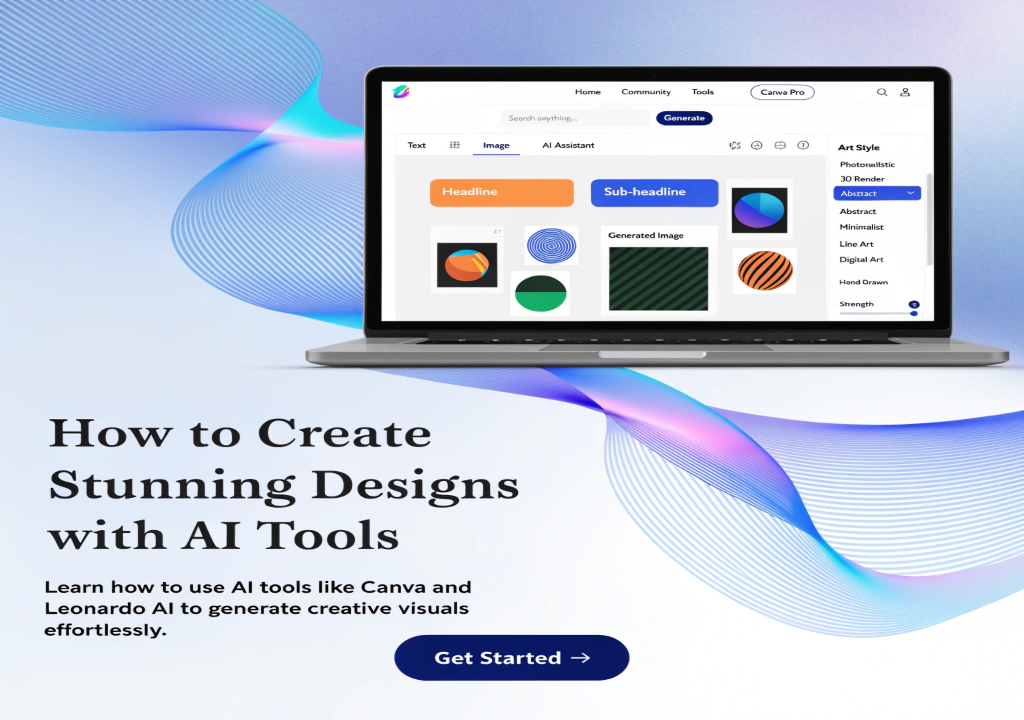
How to Create Stunning Designs Using AI
Creating good-looking designs can feel frustrating when you don’t have design skills.
You open a design tool, try a few things, change colors, move elements around… and still, something doesn’t look right. It either feels too simple or too messy. Many beginners stop here because they think design requires years of experience.
But that’s no longer true.
With the help of AI tools like Leonardo AI and Canva, creating clean and attractive designs has become much easier — even if you are just getting started. You don’t need to be a professional designer or learn complex software. Instead, you can focus on your idea, and the tools will help you turn it into a visual design.
For example, you can generate an image using AI, bring it into Canva, and turn it into a complete design like a YouTube thumbnail, social media post, or blog image — all in a simple workflow.
In this guide, you will learn how to use Leonardo AI and Canva step by step, how to create designs in a practical way, and how to build a simple process that works even if you have no prior experience.
🧩 What is AI Design Creation
AI design creation simply means using artificial intelligence to help you create visual content like images, graphics, and layouts without doing everything manually.
Traditionally, designing required skills like understanding colors, spacing, typography, and software tools. For beginners, this often felt confusing and time-consuming.
AI changes that process.
Instead of building everything from scratch, you can now:
- Generate images using simple text prompts
- Use ready-made layouts and templates
- Adjust designs with guided tools
How AI Helps in Design
AI tools support you in different parts of the design process:
- Image Generation:
You can describe an idea, and the AI creates a visual based on it. - Layout Assistance:
Tools like Canva provide ready-made templates, so you don’t need to design everything manually. - Quick Editing:
You can easily change colors, text, and elements without needing advanced skills.
Why It’s Beginner-Friendly
AI design tools reduce complexity.
You don’t need to:
- Learn advanced design theory
- Use complicated software
- Spend hours experimenting
Instead, you can:
- Start with a simple idea
- Use AI to generate visuals
- Customize and finalize the design
Simple Example
Let’s say you want to create a YouTube thumbnail.
Instead of designing everything manually, you can:
- Generate an image using Leonardo AI
- Import it into Canva
- Add text and adjust layout
Within a short time, you have a complete design ready to use.
Key Understanding
AI design is not about replacing creativity — it’s about making the process easier.
You still decide:
- What you want to create
- How it should look
- What message it should deliver
The tools simply help you turn your idea into a finished design faster and more efficiently.
🧩 What You Can Create with AI Design Tools
Once you understand how AI design works, the next step is knowing what you can actually create with it. Many beginners underestimate this part and think AI tools are limited — but in reality, they can be used for many practical and useful design tasks.
The key is to focus on designs that have a clear purpose.
YouTube Thumbnails
One of the most common and useful designs you can create is YouTube thumbnails.
With AI tools, you can:
- Generate background images
- Add bold and clear text
- Create eye-catching visuals
You don’t need advanced design skills — just a clear idea and a simple layout.
Social Media Posts
AI tools are very helpful for creating content for platforms like Instagram, Facebook, or Pinterest.
You can create:
- Quote designs
- Informational posts
- Simple promotional graphics
These designs help you stay consistent with your content.
Blog and Website Images
Instead of using generic stock images, you can create custom visuals that match your content.
For example:
- Blog featured images
- Section visuals
- Simple graphics for articles
This makes your content look more unique and professional.
Marketing Graphics
If you are working on any type of content or project, you can create basic marketing visuals such as:
- Banners
- Simple ads
- Informational graphics
These are useful for both personal and small business use.
Simple Client Work
Even as a beginner, you can use AI design tools to create basic visuals for others.
This can include:
- Social media designs
- Simple thumbnails
- Basic graphic content
You don’t need to be an expert — just focus on clean and useful designs.
Key Understanding
AI design tools are not just for experimenting — they are practical tools that can help you create real, usable designs.
When your designs are clear, simple, and purposeful, they become much more valuable than complex but confusing visuals.
🧩 Why AI Design Tools Are Useful
AI design tools are not just about making things look good — they solve real problems that many beginners face when trying to create designs.
If you’ve ever felt stuck while designing, these tools can make the process much easier and more manageable.
Saves Time
Designing from scratch can take a lot of time, especially when you are trying to figure out layouts, colors, and elements.
With AI tools:
- You can generate images instantly
- Use ready-made templates
- Make quick adjustments
This reduces the time needed to create a complete design.
No Design Skills Required
One of the biggest advantages is that you don’t need professional design skills.
You don’t have to learn:
- Complex software
- Advanced techniques
- Detailed design theory
Instead, you can focus on your idea, and the tool helps you build the design around it.
Makes the Process Easier
AI tools simplify the entire workflow.
Instead of doing everything manually, you can:
- Generate visuals
- Use templates
- Customize quickly
This makes the process less stressful and more beginner-friendly.
Helps Maintain Consistency
When you create designs regularly, consistency becomes important.
AI tools help you:
- Use similar styles
- Maintain a clean layout
- Create designs faster
This is useful if you are working on content over time.
Beginner-Friendly Learning Curve
For someone new to design, starting can feel difficult.
AI tools provide a smoother entry point:
- Simple interface
- Guided steps
- Easy editing options
You can start with basic designs and improve gradually.
Important Balance
Even though AI makes things easier, your input still matters.
You need to:
- Choose a clear idea
- Keep your design simple
- Review the final output
The tool helps you create, but your decisions shape the result.
Key Takeaway
AI design tools are useful because they reduce effort and simplify the process. They allow beginners to create clean and effective designs without needing advanced skills.
🧩 Practical Use Cases (Real & Useful)
After understanding how AI design tools work, the next important step is knowing how to use them in real situations. Many beginners create random designs without a clear goal, which often leads to content that doesn’t feel useful.
Instead, it’s better to focus on designs that solve a purpose.
YouTube Thumbnails
One of the most practical uses is creating YouTube thumbnails.
You can:
- Generate a strong background using AI
- Add bold and readable text in Canva
- Highlight the main idea clearly
A clean and simple thumbnail often performs better than a complex one.
Social Media Content
AI design tools are very useful for creating consistent social media posts.
You can create:
- Quote designs
- Educational posts
- Informational graphics
These help you stay active and maintain a clear visual style.
Blog Featured Images
Instead of using stock images, you can create custom visuals that match your content.
For example:
- Blog headers
- Section images
- Topic-based visuals
This makes your website look more professional and unique.
Simple Marketing Graphics
You can also create basic marketing materials like:
- Banners
- Informational visuals
- Simple promotional graphics
These are useful for both personal projects and small business needs.
Basic Client Work
Even as a beginner, you can create simple designs for others.
This may include:
- Social media posts
- Thumbnails
- Basic graphic content
You don’t need advanced skills — just focus on clarity and usefulness.
Key Understanding
The goal is not to create designs randomly, but to create visuals that serve a clear purpose.
When your designs are simple, clean, and useful, they become much more effective and valuable.
🧩 Tool 1 – Leonardo AI (Complete Beginner Guide)
What is Leonardo AI?
Leonardo AI is an AI image generation tool that allows you to create visuals by simply describing what you want. Instead of designing images manually, you can write a prompt, and the tool generates multiple image options based on your idea.
It is especially useful for creating custom visuals that you can later use in designs, such as thumbnails, social media posts, or blog images.
What You Can Create with Leonardo AI
With Leonardo AI, you can generate:
- Background images for thumbnails
- Creative illustrations
- Social media visuals
- Concept-style images
These images can be used directly or combined with design tools like Canva.
Step-by-Step: How to Use Leonardo AI
Step 1: Start with an Idea
Decide what kind of image you want to create.
Example:
“A modern YouTube thumbnail background about AI tools”
Step 2: Write a Clear Prompt
Describe your idea using simple and clear words.
Include:
- Subject
- Style (modern, minimal, realistic)
- Purpose
Step 3: Generate Images
Click generate and wait for the tool to create multiple variations.
Step 4: Review the Results
Look at the generated images and choose the one that best matches your idea.
Step 5: Refine if Needed
If the result is not perfect:
- Adjust your prompt
- Generate again
Step 6: Download the Image
Once satisfied, download the image and use it in your design.
Example Prompt
“Modern YouTube thumbnail background, AI theme, clean design, bright colors, minimal style”
Common Beginner Mistakes
- Writing unclear prompts
- Expecting perfect results instantly
- Using images without reviewing
Always take time to refine your output.
Pro Tips for Better Results
- Keep prompts simple and specific
- Mention style clearly
- Generate multiple versions
- Choose the best result, not the first
Why Leonardo AI is Useful
Leonardo AI helps you create custom visuals quickly without needing design skills. It gives you a strong starting point for your designs, which you can later improve using tools like Canva.
🧩 Tool 2 – Canva (Complete Beginner Guide)
What is Canva?
Canva is a design tool that allows you to create visual content using simple drag-and-drop features. It provides ready-made templates, text styles, and layout options, making it very easy for beginners to design without advanced skills.
When combined with AI-generated images (like from Leonardo AI), Canva becomes even more powerful for creating complete designs.
What You Can Do with Canva
With Canva, you can create:
- YouTube thumbnails
- Social media posts
- Blog featured images
- Simple marketing graphics
You don’t need to start from scratch — you can use templates and customize them based on your needs.
Step-by-Step: How to Use Canva
Step 1: Choose a Design Type
Select what you want to create, such as a YouTube thumbnail or social media post.
Step 2: Select a Template
Canva offers many ready-made templates. Choose one that matches your idea.
Step 3: Import Your AI Image
Upload the image you created using Leonardo AI and place it into your design.
Step 4: Add Text and Elements
Customize your design by:
- Adding text
- Adjusting font style
- Changing colors
- Positioning elements
Step 5: Adjust Layout
Make sure everything looks balanced:
- Text is readable
- Elements are aligned
- Design is not too crowded
Step 6: Download the Final Design
Once your design looks complete, export it in the required format.
Example Use Case
You generate a background image using Leonardo AI, import it into Canva, and then add bold text to create a YouTube thumbnail.
Common Beginner Mistakes
- Adding too many elements
- Using too many colors
- Making text hard to read
Keep your design simple and clear.
Pro Tips for Better Results
- Use 1–2 fonts only
- Keep color combinations simple
- Focus on readability
- Use spacing properly
Why Canva is Useful
Canva simplifies the design process and allows you to turn basic visuals into complete designs. It helps beginners create clean and professional-looking content without needing advanced design skills.
🧩 Complete Workflow (From Idea to Final Design)
When you combine AI image tools with design platforms like Canva, the process becomes much smoother. Instead of working randomly, following a simple workflow helps you create better designs consistently.
Step 1: Start with a Clear Idea
Before opening any tool, decide what you want to create.
Ask yourself:
- Is this a thumbnail?
- A social media post?
- A blog image?
A clear goal makes the entire process easier.
Step 2: Generate an Image (Leonardo AI)
Once your idea is ready, go to Leonardo AI and create a base image.
Focus on:
- Clear prompt
- Simple style
- Relevant visuals
Generate multiple options and choose the best one.
Step 3: Import into Canva
Upload your selected image into Canva.
This becomes your main background or base design element.
Step 4: Build the Design
Now start designing:
- Add text (clear and bold)
- Adjust layout
- Choose simple colors
- Keep spacing balanced
Don’t overcomplicate — simple designs work better.
Step 5: Review and Improve
Before finalizing:
- Check readability
- Make sure everything is aligned
- Remove unnecessary elements
Small changes can improve the overall quality.
Step 6: Export and Use
Once everything looks good:
- Download your design
- Use it in your content (YouTube, blog, social media)
Why This Workflow Matters
Many beginners jump between tools without a clear process. This leads to inconsistent and confusing designs.
When you follow a workflow:
- Your designs become cleaner
- Your process becomes faster
- Your results improve over time
🧩 Best Design Ideas for Beginners
When you start using AI design tools, having the right ideas makes a big difference. Many beginners struggle not because of the tools, but because they don’t know what to create.
The best approach is to start with simple, practical, and useful design ideas.
1. YouTube Thumbnails
Thumbnails are one of the easiest and most useful designs you can create.
Focus on:
- Clear background
- Bold text
- Simple layout
You don’t need complex designs — clarity is more important.
2. Quote Designs
Quote posts are very popular on social media.
You can create:
- Motivational quotes
- Educational quotes
- Simple text-based visuals
These are quick to create and easy to share.
3. Informational Posts
You can design simple visuals that explain something.
For example:
- Tips
- Short guides
- Key points
These help your audience understand information quickly.
4. Blog Featured Images
If you are creating blog content, you can design custom images instead of using stock photos.
This makes your content:
- More unique
- More professional
5. Niche-Based Designs
Choose a specific topic and create designs around it.
Examples:
- Tech
- AI tools
- Productivity
Focusing on a niche helps you stay consistent.
Key Tip
Start with ideas that are simple and useful.
Ask yourself:
👉 “Will this design help someone understand something or attract attention?”
If yes, then it’s a good idea to start with.
🧩 Common Mistakes to Avoid
When beginners start creating designs using AI tools, they often make a few common mistakes that reduce the overall quality of their work. These mistakes are very common, but once you understand them, they are easy to fix.
1. Using Unclear Prompts
One of the biggest issues starts from the beginning — the prompt.
If your prompt is too vague, the AI will generate results that don’t match your idea.
Instead of writing something general, try to clearly describe:
- What you want
- The style
- The purpose of the design
A clear prompt leads to a much better output.
2. Adding Too Many Elements
Beginners often try to make designs “look better” by adding more elements, but this usually creates the opposite effect.
Too many elements can make your design:
- Look cluttered
- Hard to understand
Keeping your design simple and focused usually gives better results.
3. Poor Text Visibility
Text is an important part of most designs, especially thumbnails and social posts.
If your text is hard to read:
- The message is lost
- The design becomes ineffective
Always make sure:
- Text is large enough
- Colors have enough contrast
- Fonts are simple and clear
4. Ignoring Layout and Spacing
Even a good design can look unbalanced if spacing and alignment are ignored.
Make sure:
- Elements are properly aligned
- There is enough space between items
- Nothing looks crowded
Small adjustments can make a big difference.
5. Skipping Final Review
Many beginners create a design and immediately download it without checking.
Before finalizing, always:
- Review the full design
- Check for small errors
- Make quick improvements
This final step helps ensure your design looks clean and complete.
Key Takeaway
Good design is not about complexity — it’s about clarity and balance.
By avoiding these common mistakes, you can create designs that are simple, clean, and much more effective.
🧩 Best Practices for Beginners
When you start creating designs using AI tools, following a few simple practices can make a big difference. These are not complicated rules — just practical habits that help you improve your designs over time.
1. Keep Your Design Simple
As a beginner, it’s better to avoid complex designs.
Focus on:
- Clear layout
- Minimal elements
- Easy-to-understand visuals
Simple designs are more effective and easier to create.
2. Use Clear and Readable Text
Text should always be easy to read.
Make sure:
- Font size is large enough
- Colors have good contrast
- Fonts are simple and clean
Readable text improves the overall quality of your design.
3. Maintain Consistent Style
Consistency makes your designs look more professional.
Try to:
- Use similar colors
- Keep a consistent layout
- Follow a simple theme
This is especially important if you create content regularly.
4. Choose the Right Colors
Colors play an important role in design.
Avoid using too many colors.
Instead:
- Stick to 2–3 colors
- Use combinations that look balanced
This keeps your design clean and visually appealing.
5. Use High-Quality Images
The quality of your image affects the entire design.
Always:
- Choose clear and sharp visuals
- Avoid blurry or low-quality images
Good visuals make your design look more professional.
6. Practice and Improve
Design improves with practice.
The more you:
- Create designs
- Try different ideas
- Learn from mistakes
The better your results will become.
Key Takeaway
Good design is not about being perfect — it’s about being clear, simple, and consistent.
By following these practices, you can create designs that look clean, professional, and useful.
🧩 Limitations of AI Design Tools
AI design tools make the process easier, but it’s important to understand that they are not perfect. Knowing their limitations helps you use them more effectively and avoid common problems.
1. Results May Not Always Match Your Idea
Sometimes the generated image or design may not fully match what you had in mind.
This can happen because:
- The prompt is not clear enough
- The AI interprets your idea differently
In such cases, you may need to adjust your prompt or try again.
2. Requires Manual Adjustments
Even though AI helps create designs quickly, it still needs human input.
You may need to:
- Adjust layout
- Fix text placement
- Improve visual balance
These small edits improve the final result.
3. Limited Creative Control
AI tools simplify the process, but sometimes they offer limited control over fine details.
For beginners, this is helpful.
But for more advanced customization, you may need extra adjustments.
4. Output Can Feel Similar
If you use very basic prompts, the results may look similar over time.
To improve this:
- Try different styles
- Experiment with prompts
- Customize your designs
5. Not a Replacement for Creativity
AI tools assist you, but they don’t replace your ideas.
You still need to:
- Decide what to create
- Guide the design
- Make final improvements
Key Takeaway
AI design tools are powerful, but they work best when combined with human thinking. Understanding their limitations helps you create better, more accurate, and more useful designs.
🧩 Final Thoughts
AI design tools have made it much easier for beginners to create clean and attractive visuals without needing advanced design skills. What once required time, practice, and technical knowledge can now be simplified into a much more manageable process.
However, the real value of these tools depends on how you use them.
If you rely only on automation, your designs may feel basic or repetitive. But if you use AI as a support tool — to generate ideas, create visuals, and speed up your workflow — you can gradually build better and more useful designs.
The best way to start is simple. Choose a clear idea, generate an image, bring it into a design tool like Canva, and build your design step by step. With practice, you will start to understand what works and how to improve your results.
Consistency is also important. You don’t need to create perfect designs from the beginning. Focus on improving with each design, and over time, your skills and confidence will grow.
In the end, AI design tools are not just about making designs faster — they are about making the entire process easier, more accessible, and more practical for beginners.
🧩 Quick Recommendation
If you are just getting started, choosing how to use each tool properly can make your design process much smoother. Both Leonardo AI and Canva are powerful, but they serve different roles.
When to Use Leonardo AI
Leonardo AI is best when you need to create the base visual.
Use Leonardo AI when you:
- Need a custom image or background
- Want unique visuals instead of stock images
- Are starting from an idea
It helps you generate the main visual that your design will be built on.
When to Use Canva
Canva is best when you want to turn that visual into a complete design.
Use Canva when you:
- Need to add text
- Adjust layout
- Create thumbnails or posts
- Finalize your design
It helps you structure and complete your design.
Best Approach for Beginners
The most effective way is to combine both tools:
- Use Leonardo AI → to generate the image
- Use Canva → to design and finalize
This gives you both creativity and control in one workflow.
Final Tip
Start simple. Don’t try to create complex designs in the beginning. Focus on clarity, readability, and usefulness.
As you practice, you will naturally improve your designs and understand how to use both tools more effectively.